








From OCR to Agentic Document Processing: three generations
Automated document processing has gone through three stages. Each one keeps the previous one and adds a capability.
| OCR | IDP (Intelligent Document Processing) | Agentic Document Processing | |
|---|---|---|---|
| What it produces | Raw text | Structured fields (supplier, date, total, line items) | Structured fields, then actions on those fields |
| Layout | One template per document layout | No template: the AI understands the page | No template |
| File types | Scanned pages | PDFs and images | PDFs, images, and sometimes videos |
| Several documents at once | No | Rarely | Yes: it cross-checks a statement against invoices, a contract against its amendments |
| Checking | None | Fixed rules, set up in advance | It redoes the calculations and flags what doesn't add up |
| Updating records | By hand | By hand | It proposes the change, you approve it |
| The person's role | Retype or correct everything | Check every field, then do everything else | Decide: accept, decline, settle the ambiguous cases |
IDP solved the reading problem. What remains is everything that comes after: checking that the QST is right, finding the invoice behind a withdrawal, filling in the missing field, preparing the entry. That is the work the agent takes on.
"Agentic" has become a sales word, and several products use it for a plain extractor with a chat window. The test is simple: ask the tool to do something to your data, not just to talk about it.
What makes a tool an agent
A document agent works in a five-step cycle.
- Understand the request. "Reconcile the October statement with the vendor invoices" is a task, not a question.
- Inspect before acting. It first looks at which fields exist in your project and what the document contains. It doesn't assume a statement has a given column or an invoice a given field: it checks.
- Cross-check sources. It searches several documents, sometimes several projects: a supplier's invoices, a month's transactions, a clause in a contract.
- Propose a justified action. It shows what it wants to change, with the old and new values, and the reason.
- Wait for your decision. Nothing is written until you approve.
A good agent also knows when to stop. When two invoices from the same supplier have the same amount, it doesn't pick one at random: it asks you, showing the numbers, dates and amounts of both candidates.
Three end-to-end examples
All three cases are done in Scanee; the companies and amounts are fictitious.
Example A: check and complete a vendor invoice
An invoice from Fournitures Laurentides inc. comes in. The AI has already read it: supplier, date, number, subtotal, taxes, total, line items.
| Field | On the invoice | Recalculated |
|---|---|---|
| Subtotal | $1,117.30 | — |
| GST (5%) | $55.87 | $55.87 |
| QST (9.975%) | $111.54 | $111.45 |
| Total | $1,284.71 | $1,284.62 |
| Payment method | (empty) | Interac transfer, mentioned at the bottom of the page |
In the AI Assistant panel, next to the document, you ask: "Are the amounts and taxes correct?" The agent redoes each calculation and answers: the printed QST is $0.09 higher than the calculated amount, and the total carries the difference. It doesn't correct the supplier's invoice: you decide whether to pay the billed amount or ask for a credit note.
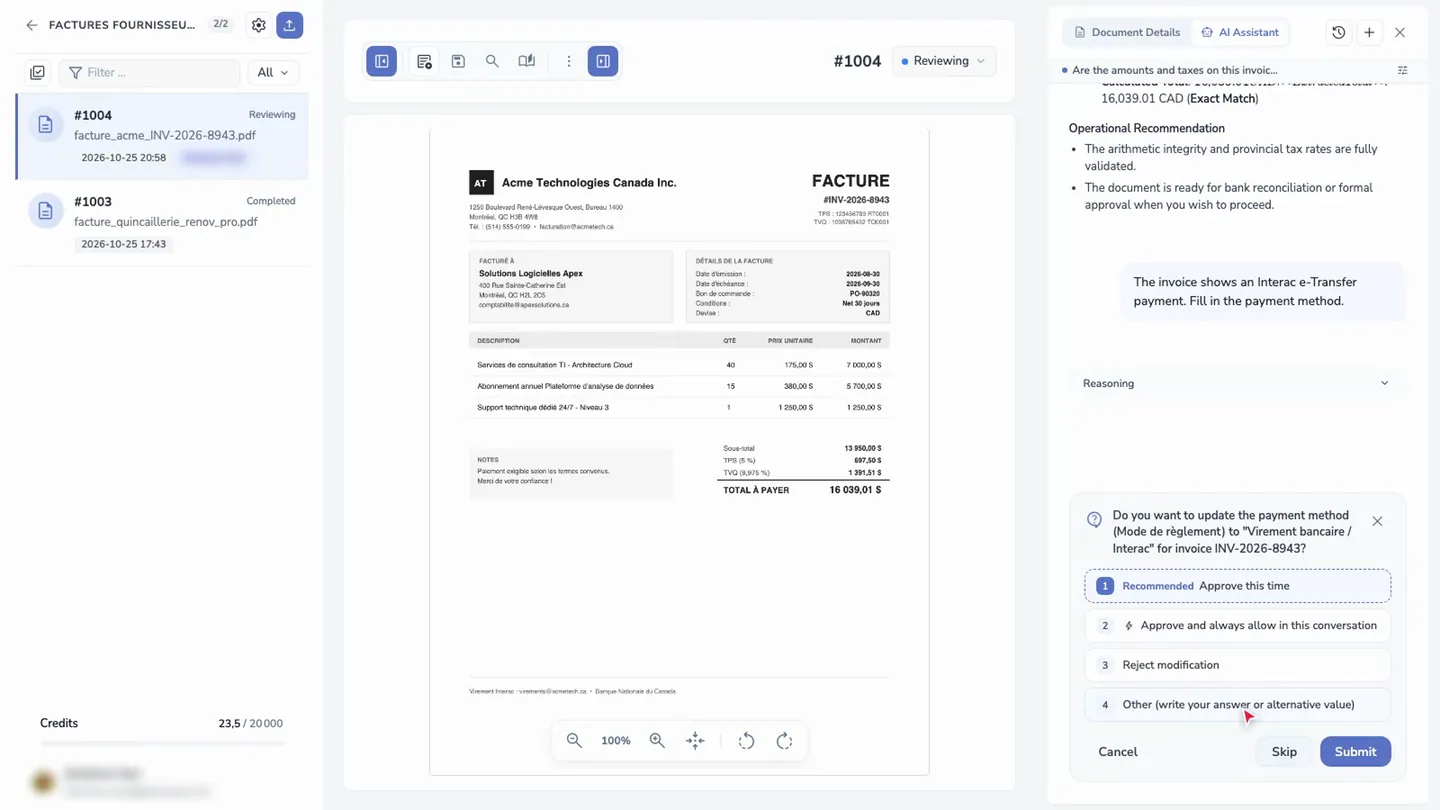
You then ask it to fill in the payment method. It shows you the change in a card: Approve this time, Approve and always allow in this conversation, Reject modification, or Other, to give a different instruction or value. You approve, and the field is filled in, in the invoice details. The screenshot below shows the same step on another test invoice.
Example B: reconcile a bank statement and prepare the entries
The October statement is in a project created from the Bank Statements template. The AI has extracted its balances, totals and transactions table. Your vendor invoices are in another project.
In the statement's AI Assistant, you type: "Reconcile this statement with the invoices in @Factures fournisseurs 2026", and add the @Bank Reconciliation skill. The agent compares each transaction with the invoices on three criteria: the same amount, the same supplier, and a payment date consistent with the invoice date.
| Statement transaction | Amount | Proposed result |
|---|---|---|
| Oct. 14 — Transfer, Fournitures Laurentides | $1,284.71 | Linked to the invoice in Example A |
| Oct. 17 — Hydro withdrawal | $412.38 | Linked to the September electricity bill |
| Oct. 21 — Payment, Entretien Boréal | $450.00 | Two possible invoices: the agent asks you which one |
| Oct. 28 — Withdrawal with no clear description | $312.40 | No invoice: flagged as a transaction without support |
For each match, it proposes linking the statement line to the invoice and the invoice to the statement, then updating the invoice: reconciliation status, payment date and payment method. You approve once for the conversation, or change by change.
You then ask for the journal entries. It asks which software they are for: QuickBooks Online, Sage 50 Canada, Avantage, Acomba, Odoo, Microsoft Business Central, Sage Accounting, Xero, or a universal Excel format. It prepares a double-entry file, where total debits equal total credits, ready to import.
Example C: beyond invoices
The agent doesn't know in advance the fields of a contract or a photo: it reads the ones you defined in the project. The same approach therefore works for other documents.
- Any other document: define your own fields, or let the AI suggest them from a sample. See Extracting any field from any document.
- Contracts: record the parties, the dates and automatic renewal, then find a clause across all your contracts. See Tracking contract renewal dates.
- Photos: outline visible damage and describe the scene. See Detecting damage in photos.
- Videos: split an inspection video into images, one per defect. See Inspecting a video.
- Document batches: a PDF holding several invoices is split into separate documents. See Split a batch.
The safeguards to require before handing your documents to an agent
An agent that changes your data needs tighter controls than an extractor. Ask any vendor these five questions.
- Does the agent show each change before applying it? Insist on seeing the old and new values, and on being able to decline. A blanket authorization should remain your choice, limited in time or to one conversation.
- Do you see the document next to the data? Checking a field should take a glance, not a search in another screen.
- What does it do when it doesn't know? An agent that guesses is more dangerous than one that asks. Test it with two identical invoices.
- Where do your documents go? Hosting, subprocessors, model training, retention: the answer should be in writing. For Scanee, see Security and privacy and Law 25.
- Does the result land where you work? Accounting software, spreadsheet, API: an agent whose work stays in its window only moves the data entry elsewhere. See the integrations and the ERP connectors white paper.
An agent doesn't replace an accountant's judgment. It removes the searching, recalculating and retyping, and leaves the decisions to the person: pay or dispute, accept or correct.
Putting it into practice with Scanee
Scanee reads your documents and extracts the fields you choose, with 99.4% accuracy on extracted fields and about 2 seconds per document. These are Scanee measurements. The time saved on checking depends on your documents: measure it during a trial.
To get started:
- Create a project from a template (invoices, bank statements, contracts, receipts, purchase orders), or attach a sample document and choose Detect with AI: the AI suggests the fields, and you adjust them. See Create a project with AI.
- Drop in your documents and check the fields next to each page.
- Open the AI Assistant to check, complete or reconcile. See Use the AI Assistant and Reconcile a bank statement.
To see extraction on an invoice without creating an account, try the free invoice extractor. For everything else, the trial lasts 14 days, with no credit card: try Scanee.
Frequently asked questions
What is the difference between IDP and Agentic Document Processing?
IDP extracts the data from a document and stops there. Agentic Document Processing adds an agent that works on that data: it checks the calculations, fills in fields, links documents together and prepares exports, at your request.
Can the agent change my data without my approval?
In Scanee, no. Each change the AI Assistant proposes appears in a card, and you choose to approve or reject it. You can also allow it for the rest of a conversation; that is a choice you make, not a default setting.
Do I need a template per supplier or document type?
No. The AI understands the page whatever its layout. You define the fields to extract once per project, or let the AI suggest them from a sample document.
Which documents can an agent handle?
Any document whose fields you define: invoices, bank statements, receipts, purchase orders, contracts, résumés. In Scanee, the app also handles photos (object and damage detection) and videos, split into images.
Is the AI Assistant included in the subscription?
Yes, on every plan, trial included. Each exchange with the AI Assistant uses credits from your plan, depending on the length of the exchange.
How long does it take to get started?
Your account is ready in 2 minutes. A project created from a template can take documents right away; with a sample document, the AI suggests the fields and you adjust them before dropping in the rest.