
Help centre 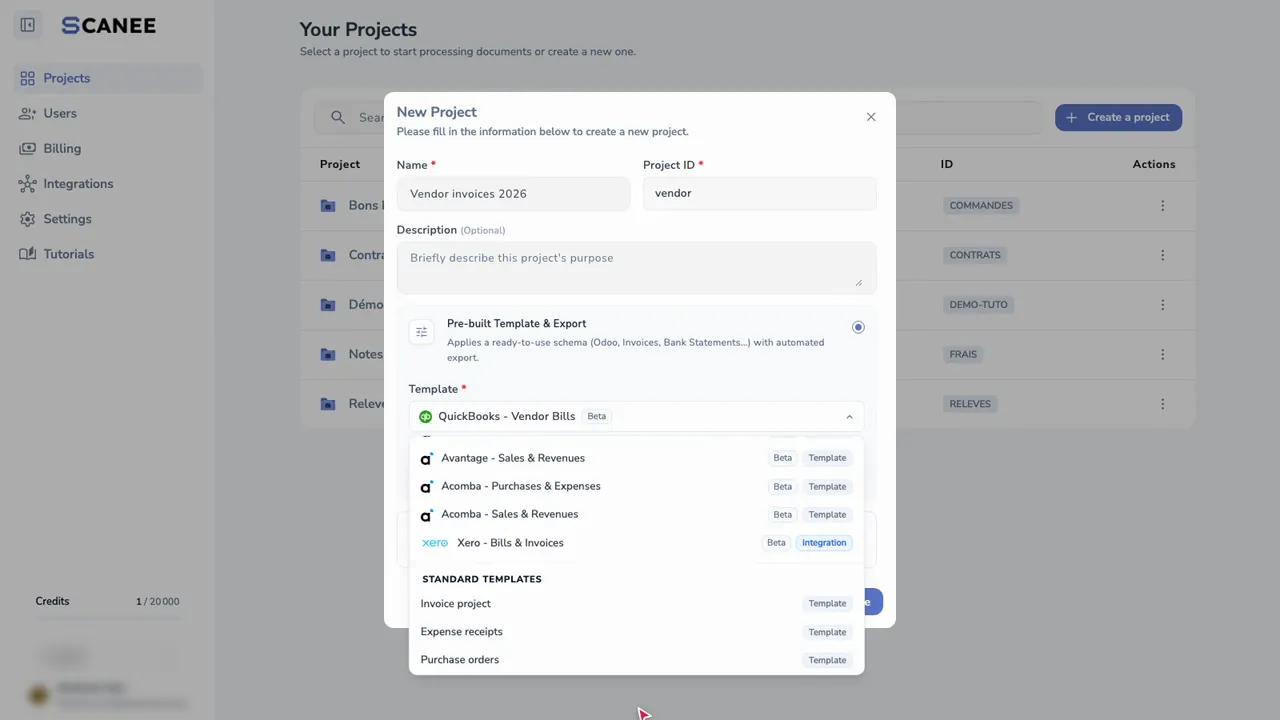
Scanee guides
Short guides, one task at a time: a video to see how it's done, then written steps with screenshots.
Get started 04
Create your first project A project holds your documents and the fields to extract from them. Start from a ready-made template: it takes under a minute.
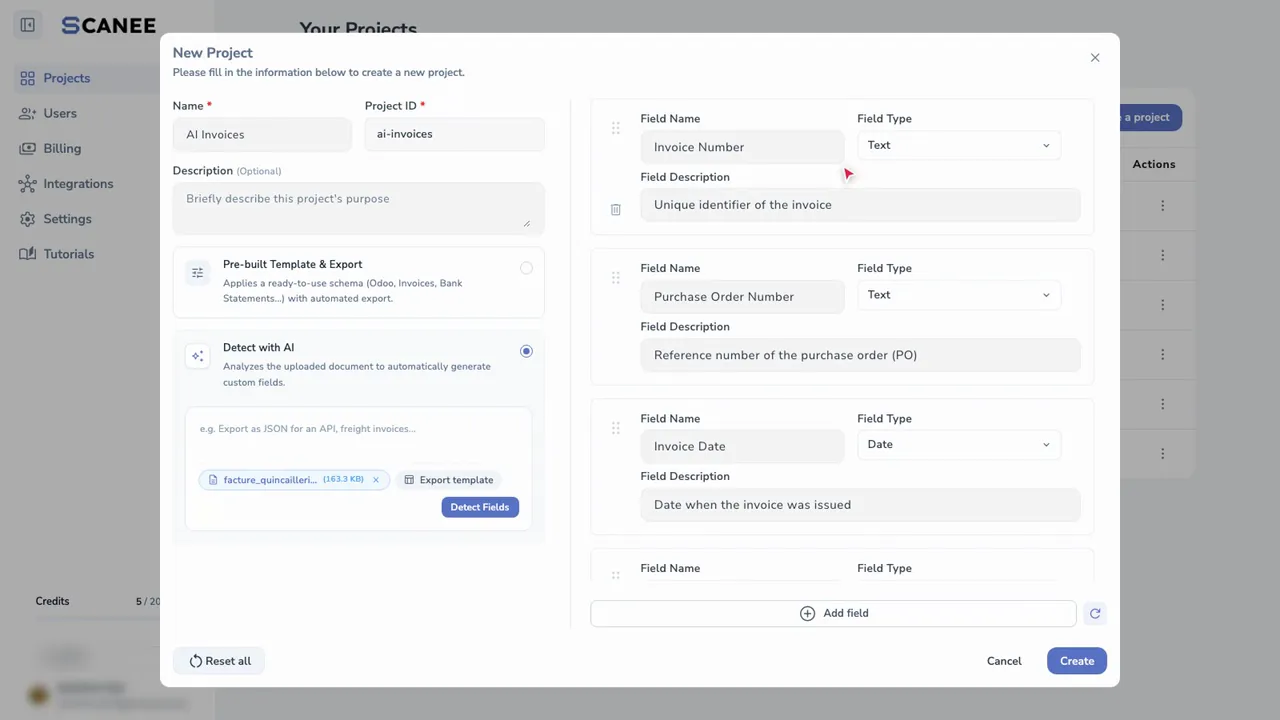
Create a project with AI Attach a sample invoice: Scanee's AI suggests every field to extract, which you adjust before creating the project.
Create fields A field is a piece of information Scanee extracts from every document. Its name, type and description guide the AI.
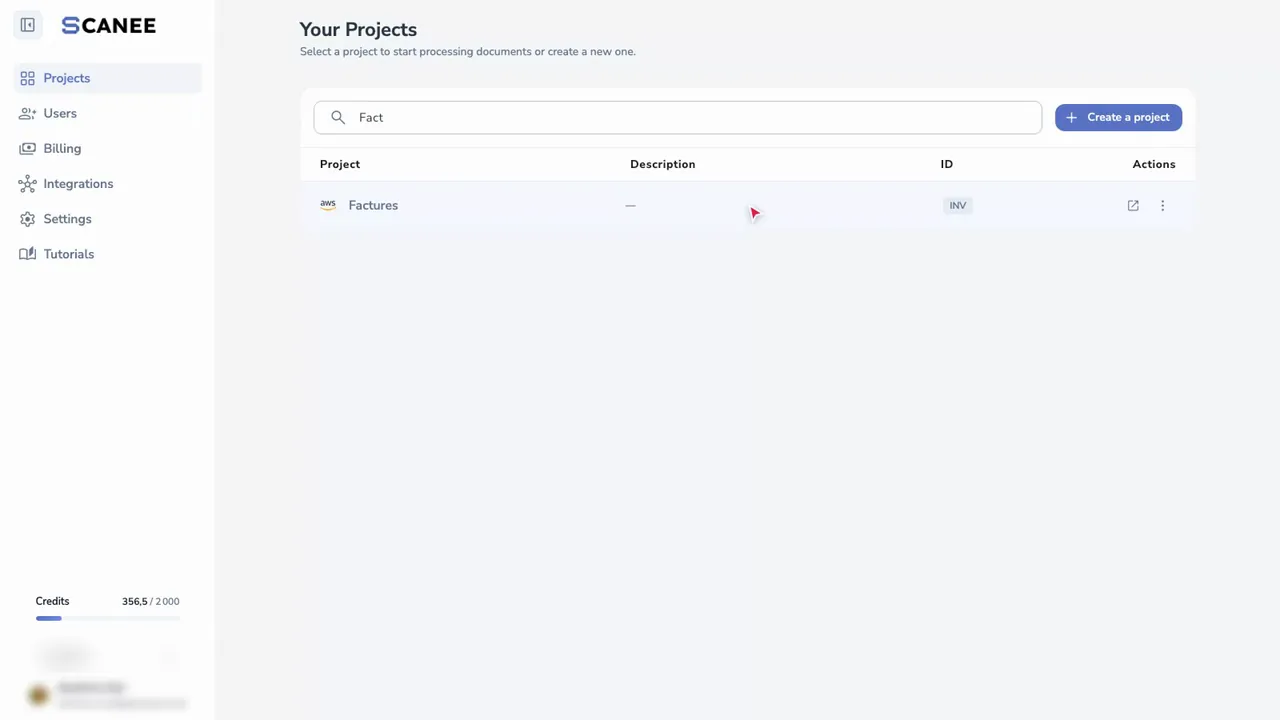
Search your projects Find a project by typing a few letters of its name.
Import and review 04
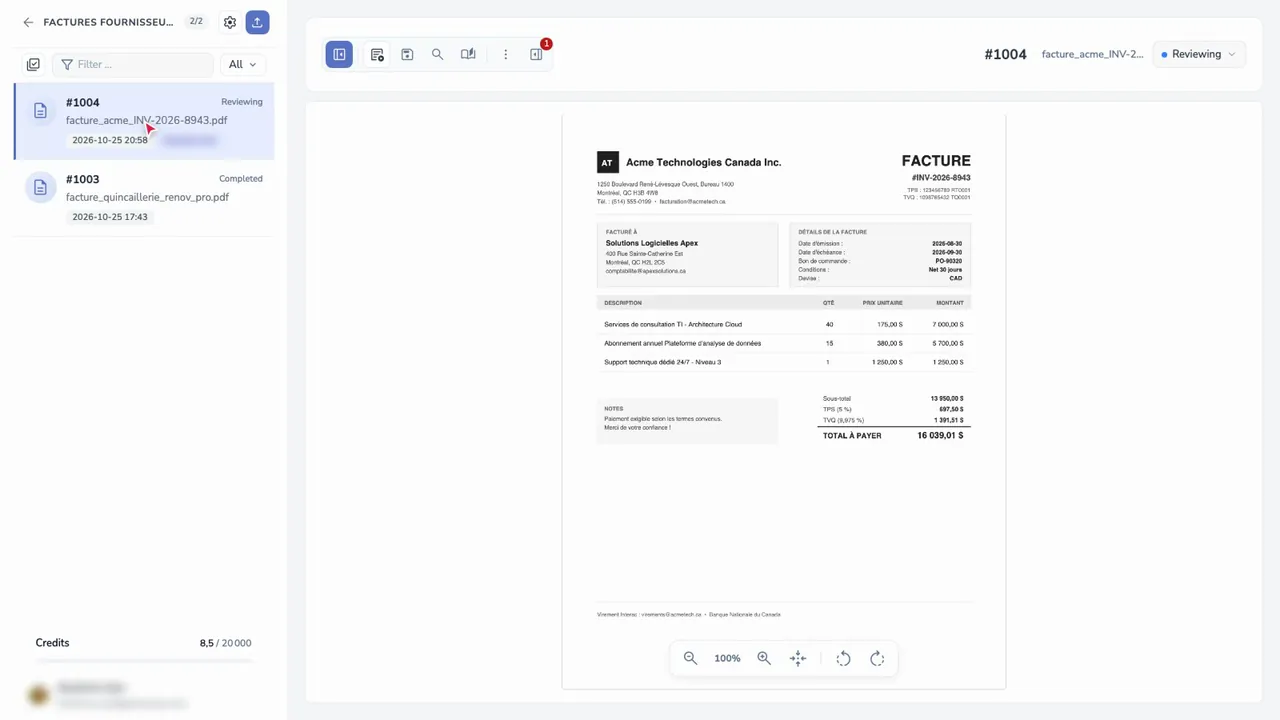
Import by drag and drop Drop an invoice into your project: Scanee reads it and fills in the fields in seconds.
Receive invoices by email Every project has its own email address: invoices your vendors send land straight in the project.
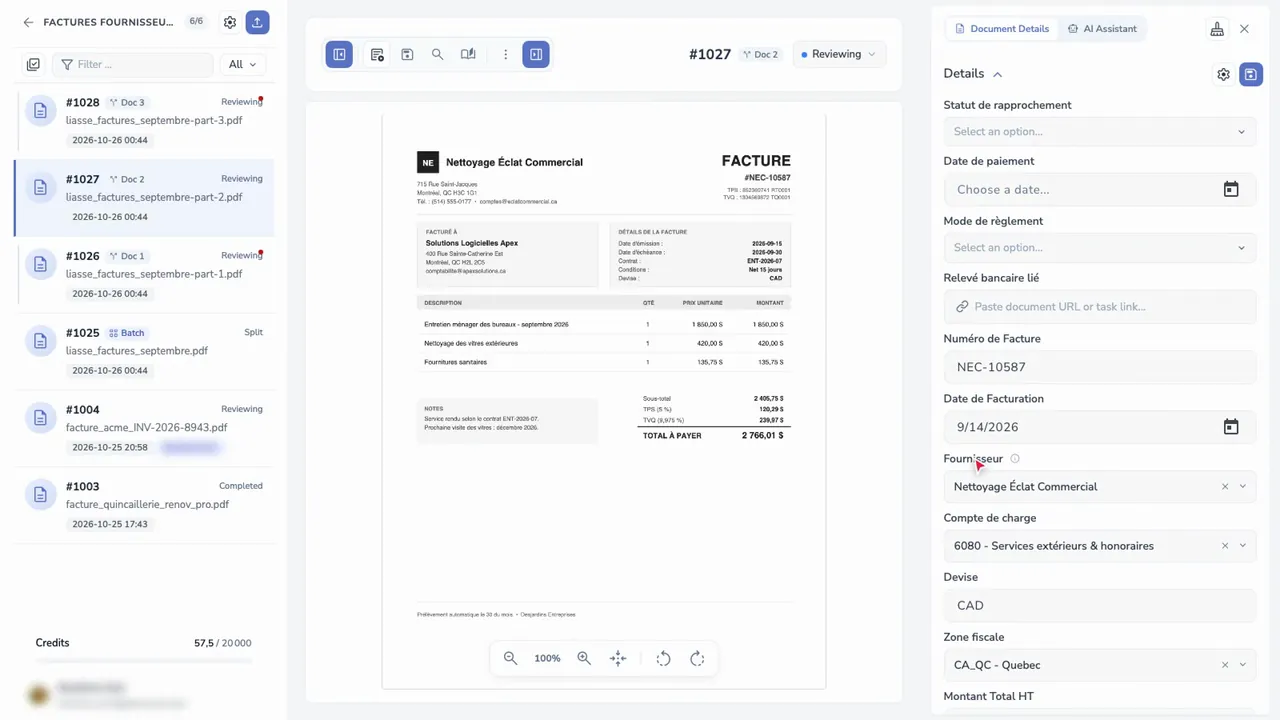
Split a PDF batch One PDF holding several invoices? Scanee finds where each one starts and creates one document per invoice.
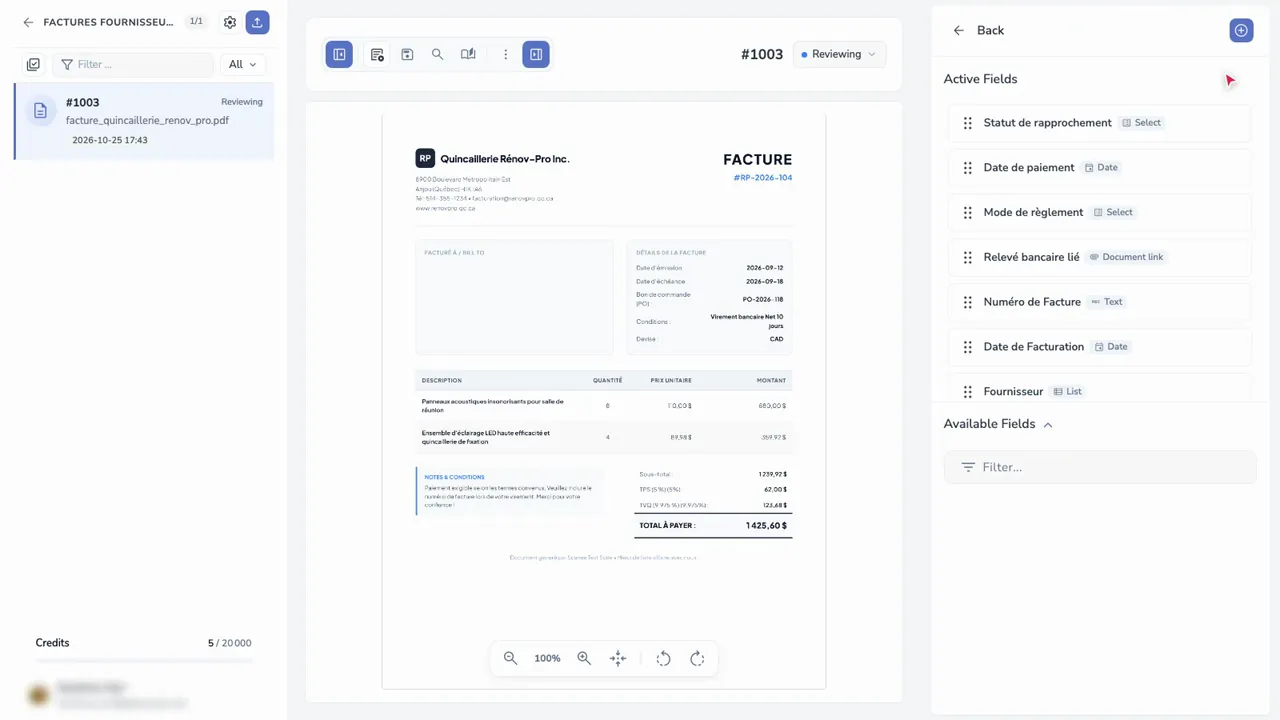
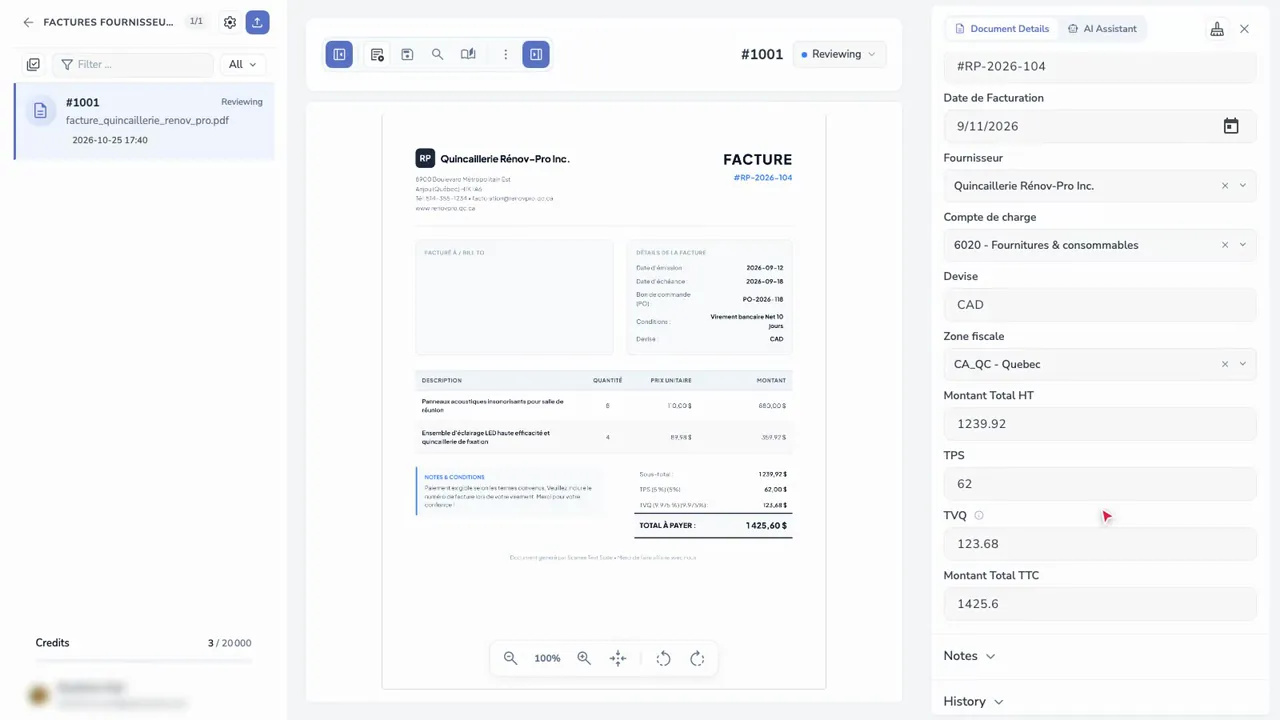
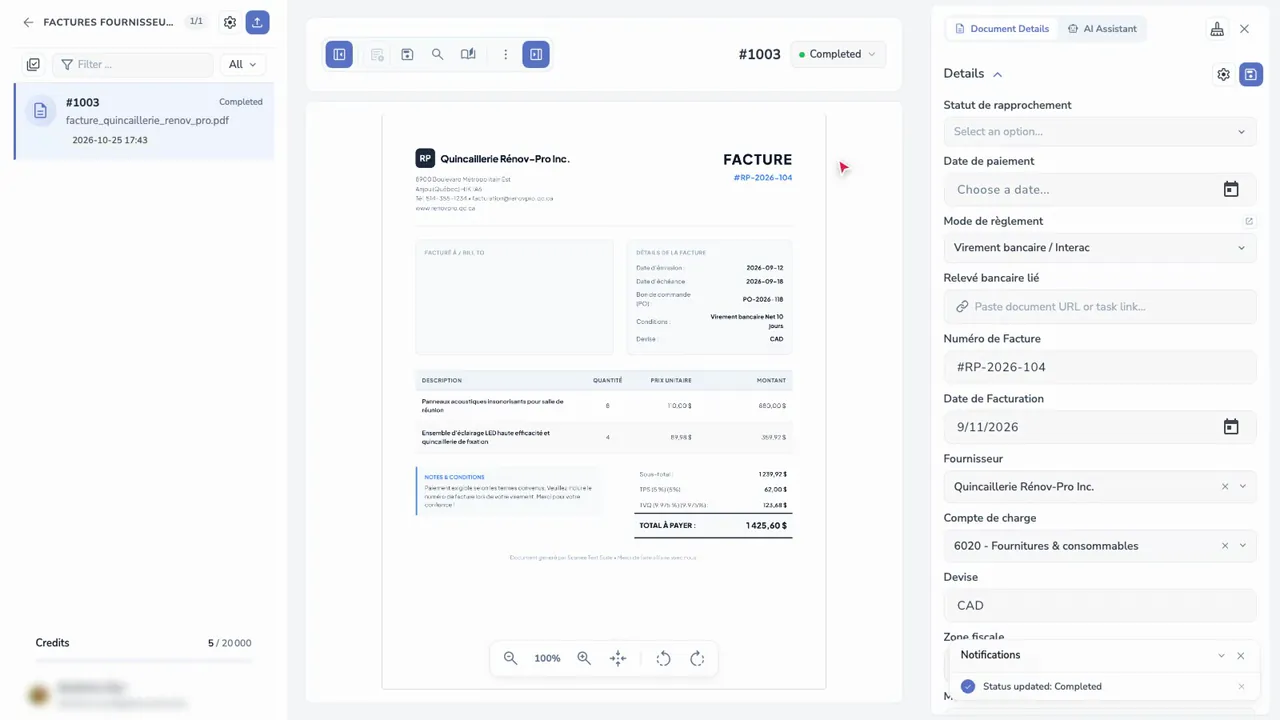
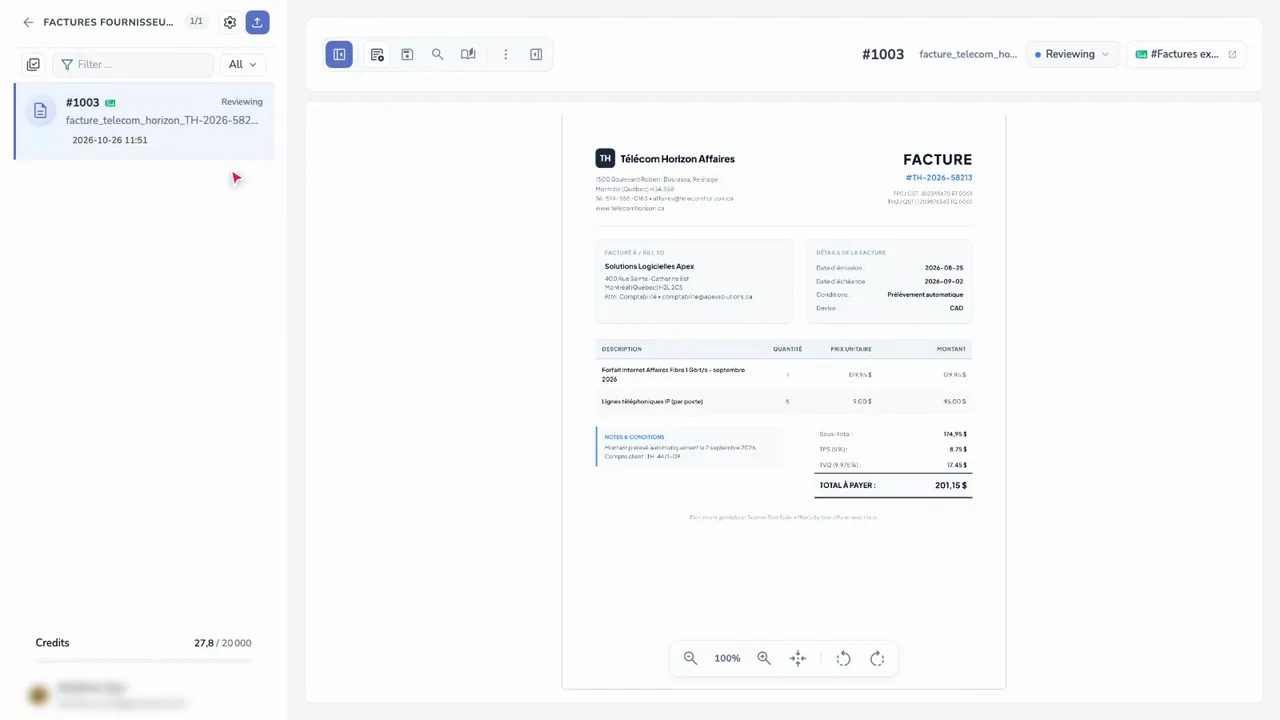
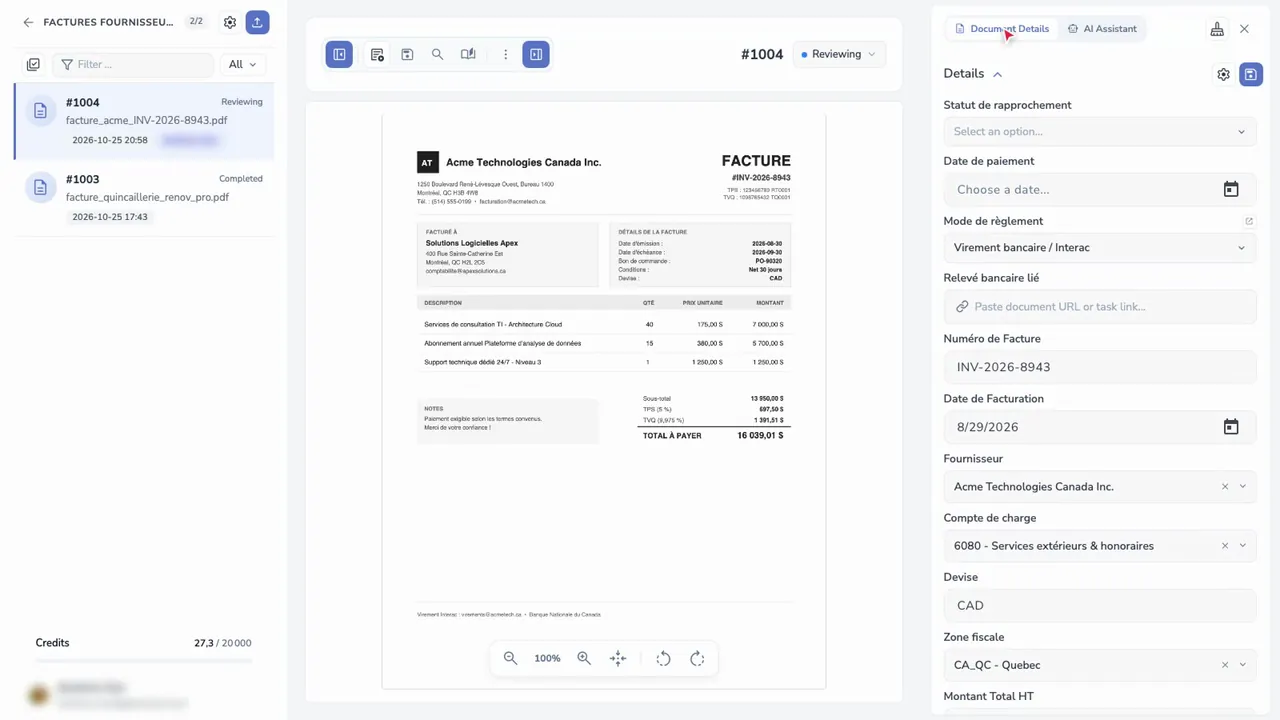
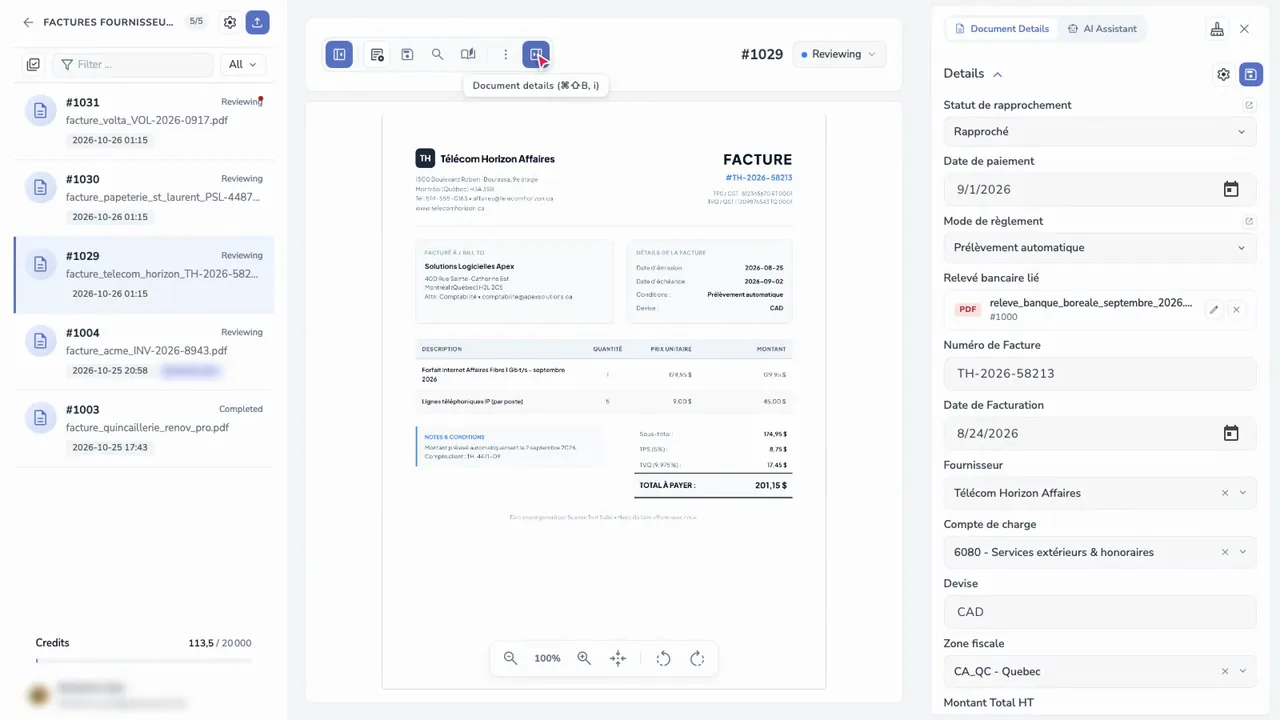
Review and approve an invoice Compare the invoice and the extracted fields side by side, fix what's missing, then mark the invoice as Done.
Export 03
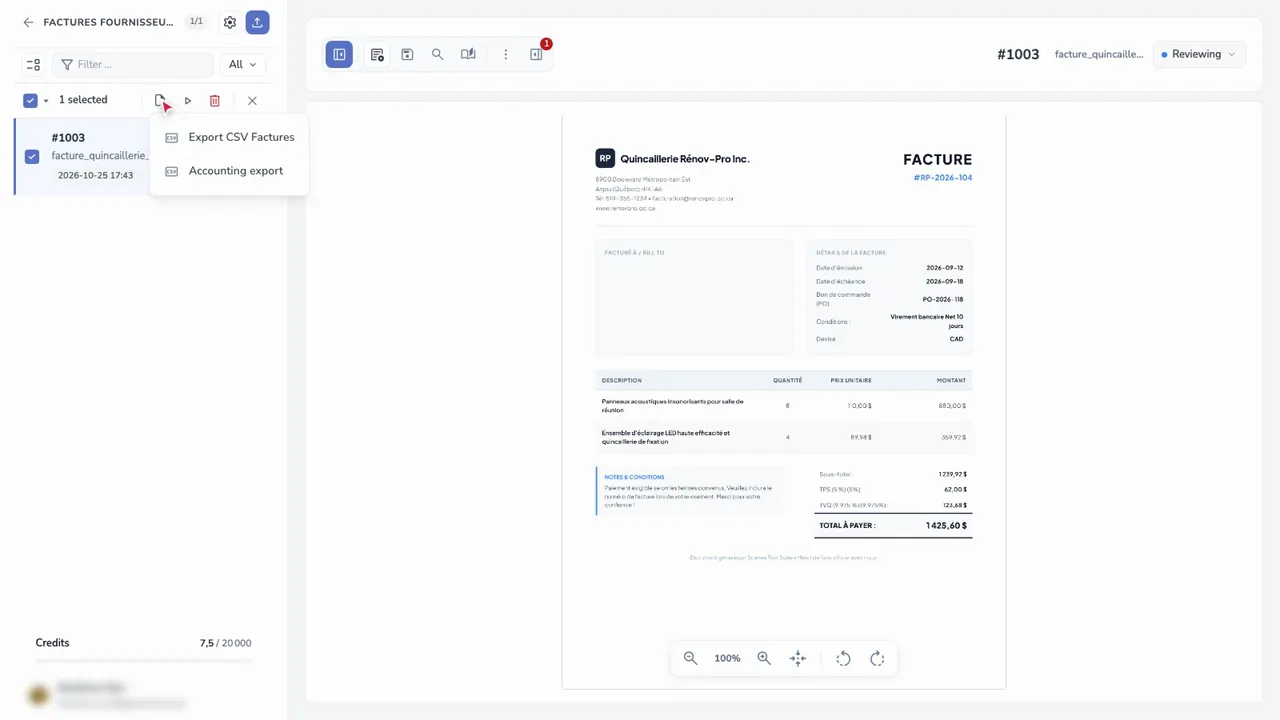
Set up an export Choose the format and the columns once, then export your invoices in one click.
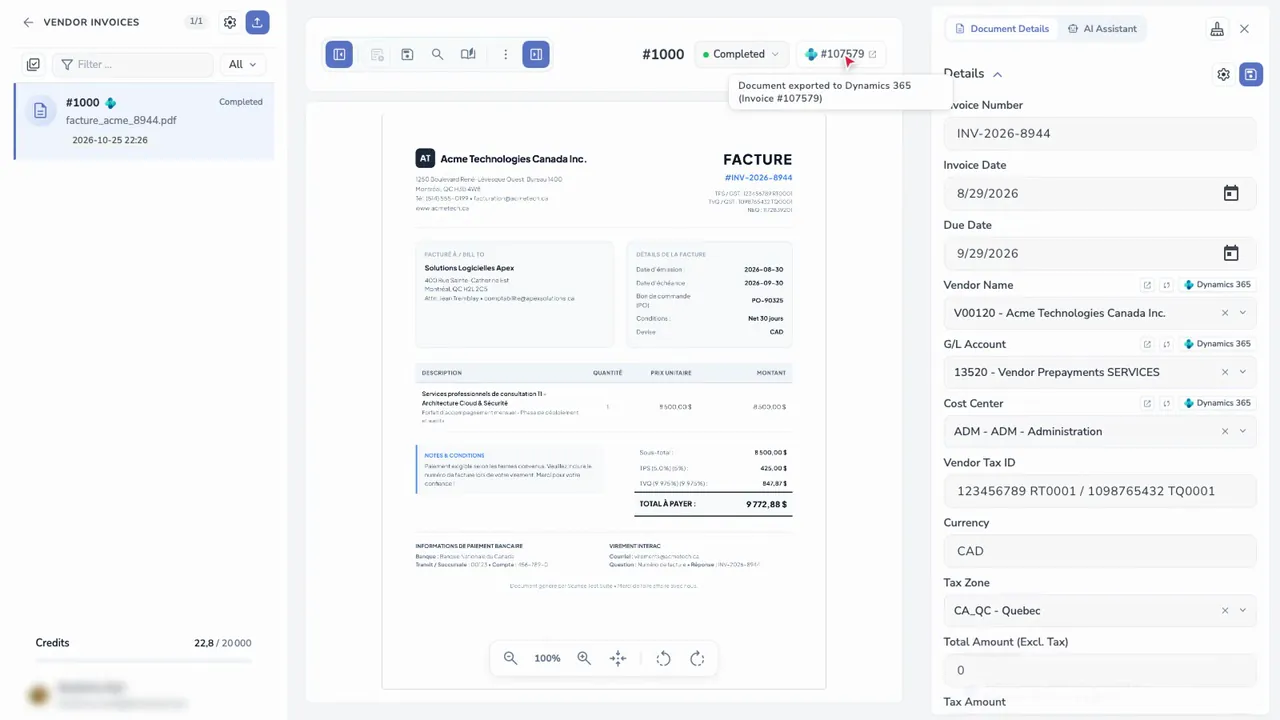
Connect your ERP and export Connect QuickBooks, Sage, Odoo, Xero or Business Central, then send your invoices straight to your ERP.
Connect Scanee to Google Sheets or Excel Import a list from a Google Sheets or Excel Online spreadsheet, such as your cost centers, then export your invoices straight to a workbook.
AI Assistant 02
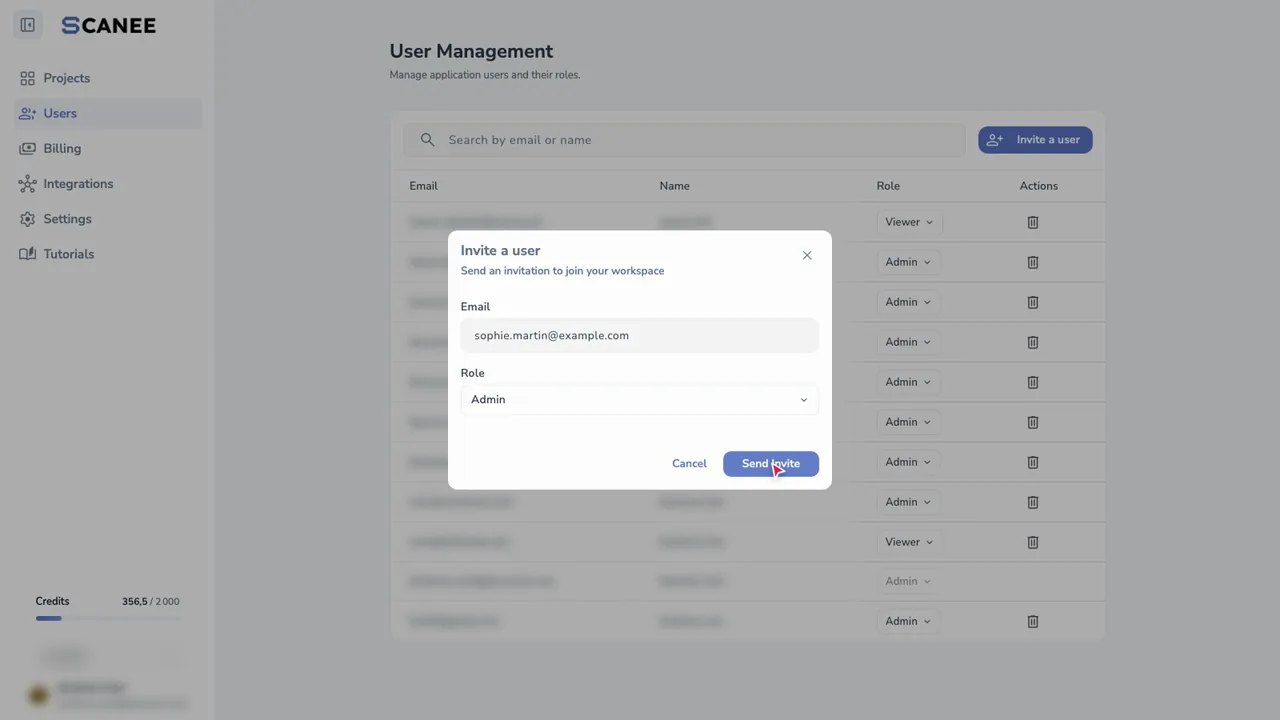
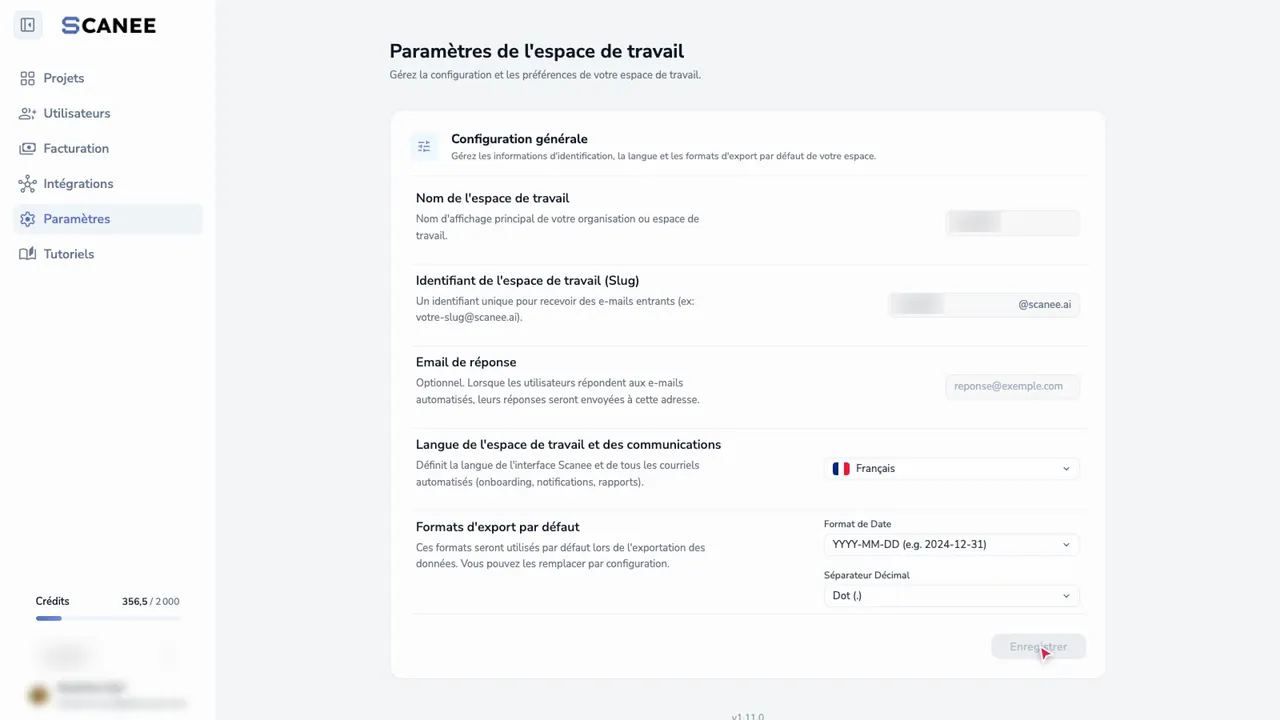
Team and account 02
No guide matches.