
Four situations where photos pile up
Damage photos come in from the phone of a driver, a tenant, a warehouse clerk or a policyholder. Someone then has to look at them one by one, describe what they see and record it in a file.
| Situation | What gets photographed | What you want to record | What slows things down |
|---|---|---|---|
| Claims and vehicle fleets | Rental returns, parking-lot scrapes, photos sent by the policyholder | Part affected, type of damage, side of the vehicle | Describing each photo by hand before triage |
| Move-in and move-out inspections | Apartment, commercial space, rented equipment, at the start and the end | Walls, floors, windows, appliances; new damage | Comparing two sets of photos and writing the report |
| Receiving and returns | Parcels, wrapped pallets, unpacked products | Crushed box, torn packaging, breakage, missing label or seal | Documenting the carrier claim on time |
| Building inspections | Roof, façade, foundation, equipment | Crack, corrosion, water infiltration, lifted shingles | Sorting dozens of photos by defect |
When the inspection is filmed rather than photographed, the same work is done frame by frame: see Inspecting a video and isolating each defect as an image.
What vision AI sees in a photo
In a photo, modern vision AI does four things at once.
- It spots the visible elements: the main object (a vehicle, a wall, a parcel), the surroundings, and the damage.
- It outlines each element: a rectangle, defined by its coordinates in the image, pins it down. You see at a glance what it is talking about.
- It names what it sees in plain words: "Broken left tail light", not a code.
- It sums up the scene: the camera angle, the object, the setting.
It can also pick out what identifies the photo or document: a logo, a licence plate, a label, a signature or a stamp on an accident report.
The four limits to know
- It only sees the surface. A pushed-in bumper can hide a broken bracket; a ceiling stain can hide an old leak. Internal damage needs an inspection.
- It doesn't measure. Without an object of known size in the frame, the size of a scratch or a crack stays a visual impression.
- It depends on the photo. Blur, backlight, reflections on a wet car body, a photo taken from too far: what the eye struggles with, the AI struggles with too.
- It doesn't decide. It doesn't price the repair, settle liability or accept a claim. It prepares the file for the person who will.
Tools built for auto insurance go further, up to estimating repair costs. A general-purpose AI like Scanee's stops at the structured report, but adapts to any object: vehicle, apartment, parcel or equipment.
Six rules for usable photos
These rules help the AI, and they also help your evidence if the file is disputed.
- An overview, then close-ups. The overview places the damage; the close-up shows it.
- Shoot straight on. An angle perpendicular to the surface limits reflections and distortion.
- Light, without direct flash on a shiny surface. Flash creates a glare that hides the damage.
- A reference object. A ruler, a coin or a pen next to a crack gives the scale.
- Something that identifies the subject in at least one photo: plate, unit number, parcel label, unit address.
- The original image. No filter, no tight crop, no screenshot of a photo: you lose detail and the date the photo was taken.
Complete example in Scanee: a photo of a damaged car
The project
In Create a project, choose the Object & Visual Element Detection template. It creates five fields:
| Field | What it holds |
|---|---|
| Detected Objects & Elements | Each element spotted, with its box on the image |
| Scene Description | One sentence summing up the photo |
| Logos & Brands | Brands, logos, pictograms, with their box |
| Signatures & Stamps | Signatures, stamps, seals, with their box |
| Media Type | Photograph, Scanned Document, Diagram / Schema, Screenshot, Inspection Report or Other |
The result
We dropped in a test photo: the back of a grey compact car, in a parking lot. Scanee outlined seven elements (the test was run in French; the labels are translated here).
| Element outlined | Kind |
|---|---|
| Damaged grey compact car | Main object |
| Impact damage and scratches on the rear left bumper | Damage |
| Broken left tail light | Damage |
| Rear wiper | Vehicle part |
| Licence plate masked in white | Identification |
| Orange and white traffic cone | Surroundings |
| Metal shopping cart | Surroundings |
The Scene Description starts with "Rear left three-quarter view of a damaged grey compact car", and the Media Type is Photograph.
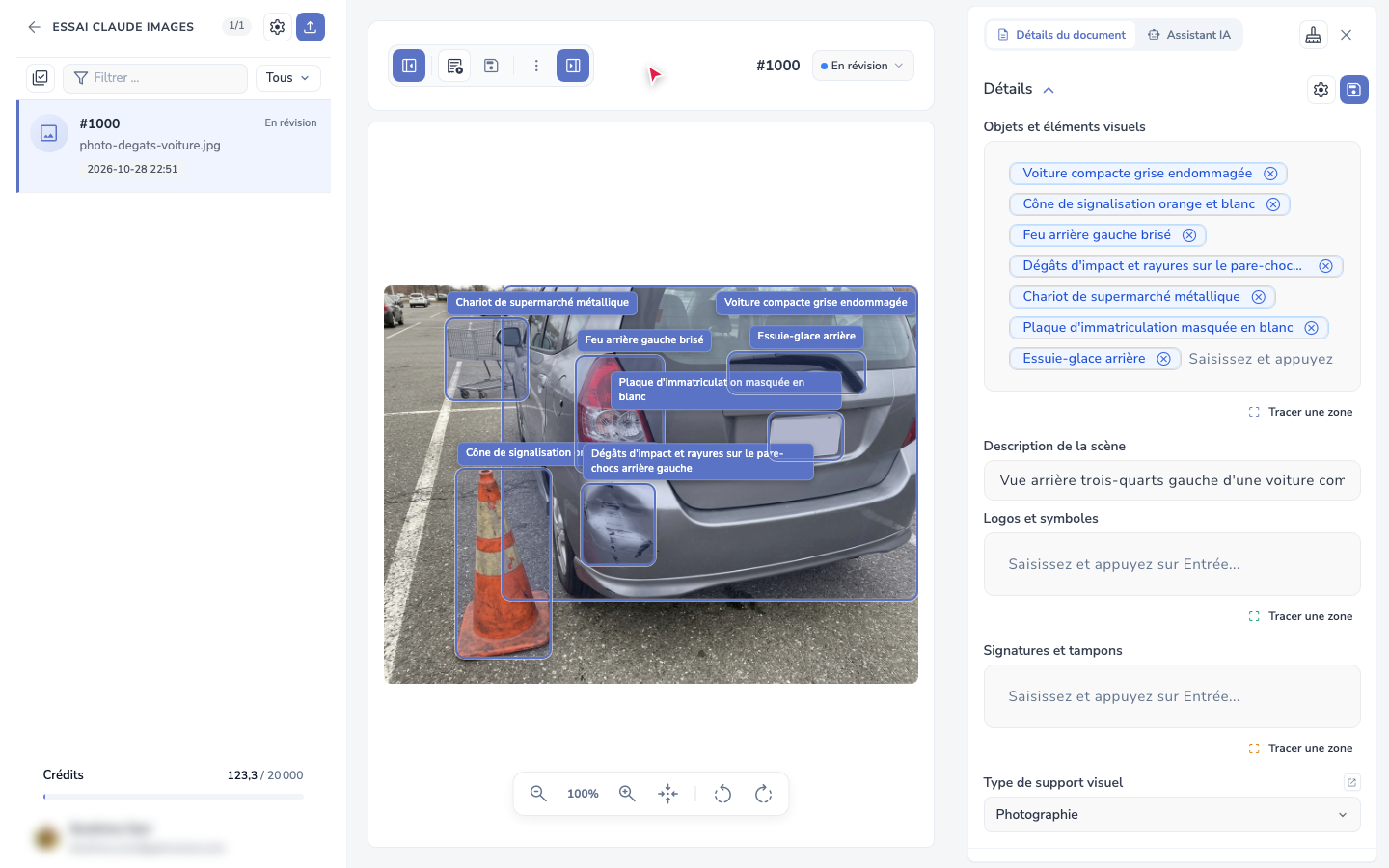
The cart and the cone have nothing to do with the damage, but they matter: they place the scene (a parking lot) and may explain the scrape.
Fit the fields to your work
The template records everything that is visible. For a claim file or a move-out inspection, you often want the damage only, and a decision. With Add field, add for example:
| Field | Type | Description that guides the AI |
|---|---|---|
| Visible damage | Keywords / Object detection | Outline only visible physical damage: dent, scratch, crack, broken glass, corrosion |
| Severity | Selection List | Minor, Moderate, Major |
| Next step | Selection List | Repair, Replace, Acceptable |
The field description is sent to the AI along with the photo. It is what tells the AI what to outline and what to ignore. See Create fields.
Correct before exporting
Each element appears next to the photo, and you stay in control:
- remove an extra element with one click on its cross;
- add a missed detail with Draw a zone: you draw a rectangle on the image, and it joins the field;
- the AI Assistant answers a question about the photo, or proposes filling in a field, which you approve.
Export the file
The template prepares an Object Detection (JSON) export: the file name and link, the media type, the scene description and each element with its coordinates. You can also set up a CSV or Excel export, or connect the project to Google Sheets. See Set up an export.
If you download the photo while the boxes are displayed, Scanee downloads it with the boxes drawn on it, ready to attach to a report. An export can also include the link to that annotated image.
Scanee reads documents with 99.4% accuracy on extracted fields, in about 2 seconds per document: these measurements were made on documents. For photos, check the result on your own images during the trial. The trial lasts 14 days, with no credit card: try Scanee.
Frequently asked questions
Which photo formats are accepted?
JPG, PNG, WEBP, TIFF and HEIC, the iPhone photo format, as well as PDFs. A phone photo can be dropped in as is, without converting it.
How do I detect only the damage and ignore the surroundings?
Add a Keywords / Object detection field whose description asks to outline only the damage, for example "dent, scratch, crack, broken glass, corrosion". The AI follows that description.
Can I correct a box or add one by hand?
Yes. Remove an element with one click on its cross, or add one with Draw a zone by drawing a rectangle on the photo.
Can field teams send their photos by email?
Yes. Each project has its own email address, and photos attached by an approved sender are added to the project and analyzed. See Receive by email.
Can the AI estimate the cost of a repair?
Not reliably, and Scanee doesn't promise it. It spots and describes visible damage; pricing stays with an adjuster, a body shop or your own price list.
Photos or video: which should I use?
Photos for a few specific damages, with close-ups. A video for a full walkthrough of a building or a piece of equipment: Scanee splits it into images, one per defect. See Inspecting a video.