
Why templates break as soon as you leave invoices
Extraction tools have long offered two approaches.
| Approach | How it works | Where it breaks |
|---|---|---|
| Fixed models | A catalogue of known documents (invoices, receipts) with their fixed fields | The field you need isn't on the list |
| Zone templates | You draw boxes on a sample document: "the number is here" | The supplier changes its layout, or a table grows by one row |
| Described fields | You name the fields and describe what they hold; the AI finds them by meaning | A vague description gets a vague answer |
The third approach reads the document the way a person does: it looks for "the customer's purchase order number" wherever it is on the page. That is what makes it possible to handle the documents that take longest to key in, precisely because they fit no catalogue.
| Family | Documents | Typical fields |
|---|---|---|
| Logistics and receiving | Delivery slips, bills of lading, shipping manifests | Purchase order number, carrier, weight, items delivered, delivery exceptions |
| Quality and compliance | Certificates of analysis, insurance certificates, safety data sheets | Lot number, expiry date, coverage amount, out-of-spec results |
| Operations and job sites | Work orders, service reports, timesheets | Job number, equipment, technician, hours, parts replaced, customer signature |
| Specialized accounting | Invoices with a field specific to your business | Supplier's GST and QST numbers, project number, holdback |
Three ways to create your fields in Scanee
1. From a sample document
In Create a project, choose Detect with AI, then attach a Sample document: a representative PDF or photo. You can add an instruction in the text box, for example "delivery slips from our carriers, one row per item". Click Detect Fields.
The AI reads the page and suggests the list of fields: a name, a type and a description for each, and the columns of any tables. You edit, delete or add fields with Add field, then click Create.
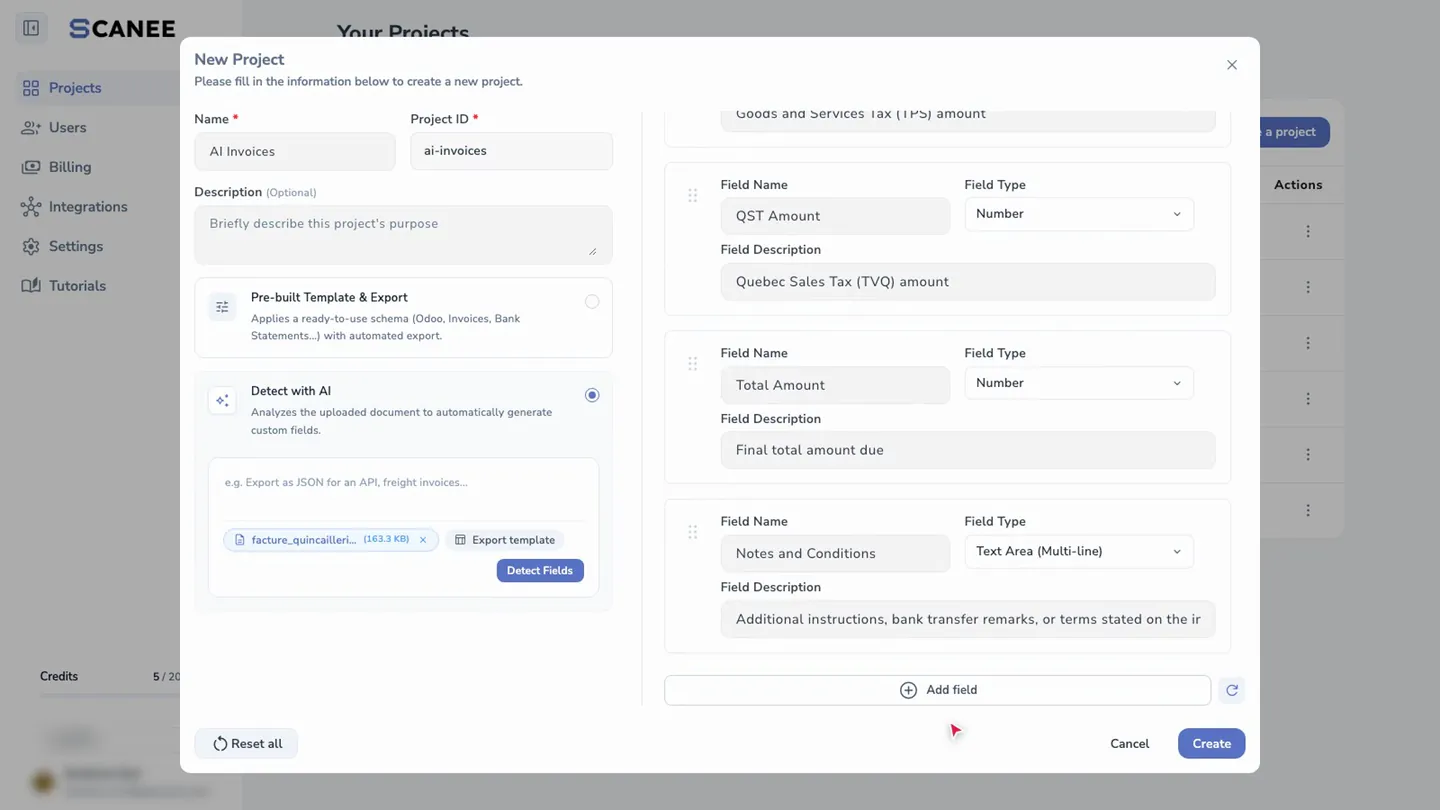
See the Create a project with AI guide.
2. From the file your software expects
If your software imports a specific file, attach it as an Export template: a CSV, Excel or JSON file with the expected columns. Scanee reads those columns, creates the matching fields and prepares an export that fills each column. Attached together with a sample document, the export template also helps connect each column to what the AI finds on the page.
This is the most direct method when the destination is fixed: you start from what you have to produce, not from what the document contains.
3. By hand
In the project settings, Fields tab, click Create Field. You give a name, a Description (AI Instructions) and a type. See the Create fields guide.
The three methods combine: start from a sample document, then refine a field by hand.
Choosing the right field type
Scanee offers 14 field types.
| Use | Types | Example |
|---|---|---|
| Simple values | Text, Long text, Number, Date, Time | Lot number, special conditions, weight, expiry date |
| Closed choices | Select, Radio, Checkbox | Compliant / Non-compliant; signature present: yes or no |
| Tables | Table, with its columns: text, number, date or list | The items on a delivery slip, one row per item |
| Reference lists | List | Your suppliers, your general ledger accounts, your job sites |
| Calculations and links | Formula, Document link | Gap between quantity ordered and delivered; invoice linked to its delivery slip |
| Images and video | Tags / Objects detection, Timeline / Video Markers | Outline a signature or a stamp; mark moments in a video |
Two types are worth a closer look.
- List. The field relies on your own reference list: imported from a CSV, synced with your ERP, or linked to a Google Sheets or Excel Online tab. With Auto-resolve with AI, the AI matches what it reads on the document to one of the items in the list, using each item's code, label and description.
- Formula. The field is calculated from other fields, with the four basic operations and parentheses: a gap, a net amount, a total. The AI doesn't guess it; it's calculated.
The description: your main lever for accuracy
Each field's description is sent to the AI along with the document. It's the instruction the AI follows. A good description says what to look for, where to find it if that helps, what format to return and what to ignore.
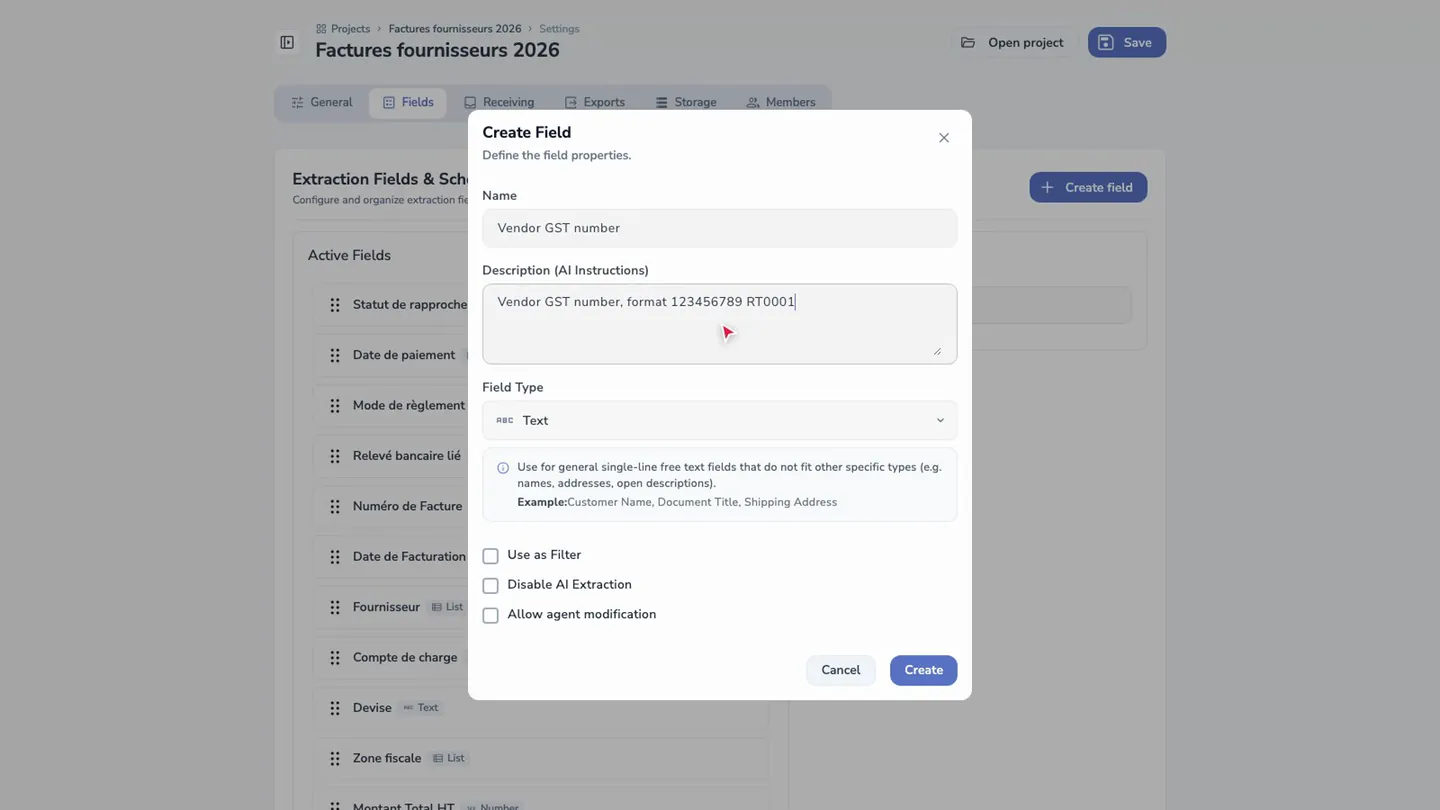
| Field | Vague description | Description that guides the AI |
|---|---|---|
| Supplier GST number | GST number | Supplier's GST number, format 123456789 RT0001. Ignore the customer's number if it also appears. |
| Customer purchase order | Order number | Customer's purchase order number, format PO-YYYY-NNNN, often near "Your reference". |
| Holdback | Holdback | Amount held back on the invoice as a warranty holdback, in dollars, without the sign. Zero if there is none. |
| Signature on delivery | Signature | Yes if a handwritten signature appears in the "Received by" box at the bottom of the slip; otherwise No. |
Three options at the bottom of the Create Field window complement the description:
- Use as Filter: filter and find documents by this field;
- Disable AI Extraction: leave the field empty on first processing, for an internal check or a field filled in later;
- Allow agent modification: let the AI Assistant fill in or correct this field, always with your approval.
End-to-end example: a delivery slip
A company receives delivery slips every day from several carriers, all different. It wants to check the quantities received and import the result into its inventory software. Here is one possible setup.
| Field | Type | Description |
|---|---|---|
| Carrier | List (your carriers) | Name of the carrier that delivered, matched to the list |
| Delivery slip number | Text | Slip number, often at the top right |
| Purchase order | Text | Our purchase order number, format PO-YYYY-NNNN |
| Delivery date | Date | Date the goods were received |
| Items | Table: code, description, quantity ordered, quantity delivered | One row per item on the slip |
| Exceptions | Long text | Damage or shortages noted on delivery; empty if none |
| Signed on receipt | Checkbox | Yes if the "Received by" box is signed |
The project is created by attaching a delivery slip as the sample document and the inventory software's import file as the export template. You adjust the descriptions, then drop in the slips, or receive them by email at the project's address. Each slip opens next to its fields, and the export produces the expected file.
Frequently asked questions
What if two suppliers put the same information in different places?
Nothing special happens. The AI looks for the information by its meaning and by the context of the page, not by its position. If two suppliers name it differently, say so in the description: "called 'Reference' or 'Your order' depending on the supplier".
I'm adding a field to an existing project: how do I fill it for documents already processed?
Open a document and choose Reprocess document, or select several documents to reprocess them in a batch. Each reprocessing uses credits. For a few documents, you can also ask the AI Assistant to fill in the field.
Can I link a list to Google Sheets, Excel Online or my ERP?
Yes, with a List field. Its items come from a CSV, your ERP or a Google Sheets or Excel Online tab, and Auto-resolve with AI picks the right item for each document.
Can I create my fields from an existing CSV, Excel or JSON file?
Yes. Attach it as an Export template in Detect with AI: Scanee creates the fields from its columns and prepares the matching export.
Which documents can I process?
PDFs, native or scanned, and images, including phone photos. A PDF that holds several documents can be split automatically. See Split a batch.
How do I check that the AI understood?
Test on a few different documents before processing a large volume. Each document opens next to its fields: if a field is filled in wrong, sharpen its description, then reprocess. The trial lasts 14 days, with no credit card: try Scanee.