
Why an ordinary converter fails on a bank statement
Banks often provide a CSV file for recent months only. For a full fiscal year, for a client's statements or for a scanned statement, you start again from the PDF. That is where automatic conversions disappoint.
| Pitfall | What happens in Excel |
|---|---|
| Debits and credits | Depending on the bank, two columns ("Cheques and debits", "Deposits and credits") or a single one with a sign. The converter merges or swaps them. |
| Descriptions over several lines | One transaction becomes three rows, two of them with no date or amount. |
| Page breaks | The header, footer and legal notices land in the middle of the transactions. |
| Scanned statements | The PDF has no selectable text: nothing comes out. |
| Totals left unchecked | Nothing checks that the opening balance, plus deposits, minus withdrawals, gives the closing balance. |
The last check is the most useful of all: if it doesn't balance, a line is missing or duplicated.
What Scanee extracts from a statement
In Create a project, choose the Bank Statements template. It keeps the statement header apart from the transaction details.
The header, in nine fields:
| Field | Content |
|---|---|
| Bank Account | The account in your general ledger, picked from a list you replace with your own accounts |
| Account Name, Account Number | As shown on the statement |
| Start Date, End Date | The statement period |
| Opening Balance, Total Deposits, Total Withdrawals, Closing Balance | The four amounts from the summary |
The transactions, in a Transactions table with six columns: Date, Description, Withdrawals and Debits, Deposits and Credits, Balance, and Matched Document, which will hold the reconciled invoice or receipt.
Debits and credits stay in two separate columns, however the bank presents them. The AI reads the statement as a document, not as positions on a page: native and scanned PDFs are read the same way. If one file holds several monthly statements, automatic splitting separates them: see Split a batch.
Four ways to get your transactions into a spreadsheet
- The instant CSV. In the Transactions field, click View Grid, then Download CSV. Handy for a single statement.
- The preset export. The template prepares Bank Statement & Transactions (CSV): one row per transaction, with the account, number and period repeated on each row. It's the format most accounting imports expect.
- An Excel workbook. In the project settings, Exports tab, create an export in Excel (.xlsx) format.
- Google Sheets or Excel Online. The export writes straight into your spreadsheet. Choose the Export Granularity: Line Items Mode for one row per transaction, or Document Mode for one summary row per statement.
The CSV separator can be a comma or a semicolon, and the date format is adjustable: YYYY-MM-DD, DD/MM/YYYY or MM/DD/YYYY. See Set up an export and Connect Google Sheets or Excel.
Four checks before exporting
An extraction takes seconds to check, as long as you know what to look at. Run these four checks on each statement, next to the PDF:
- The balances add up. Opening balance, plus total deposits, minus total withdrawals: you should get the closing balance.
- The number of transactions matches. Many banks state the number of deposits and debits in the summary. Compare it with the number of rows in the table.
- The balance carries from line to line. Each balance equals the previous one, minus the withdrawal or plus the deposit on that line. A break points to a missing line or an amount in the wrong column.
- The dates stay within the period. A date outside the statement period gives away a misread year or month.
If a check fails, correct the line in the grid, add one with Add Row, then export.
Complete example: from the September statement to reconciliation
Take the fictitious statement from the Reconcile a bank statement guide: the business account of Solutions Logicielles Apex inc. at Banque Boréale du Québec, from September 1 to 30, 2026.
The extracted summary:
| Opening balance | Total deposits | Total withdrawals | Closing balance |
|---|---|---|---|
| $48,750.00 | $22,500.00 (1 transaction) | $19,711.91 (5 transactions) | $51,538.09 |
The check balances: 48,750.00 + 22,500.00 − 19,711.91 = $51,538.09.
The six extracted transactions:
| Date | Description | Withdrawals | Deposits | Balance |
|---|---|---|---|---|
| Sept. 2 | Pre-authorized debit, Télécom Horizon Affaires, invoice TH-2026-58213 | $201.15 | $48,548.85 | |
| Sept. 11 | Debit card payment, Papeterie Saint-Laurent #44871 | $601.90 | $47,946.95 | |
| Sept. 19 | Transfer sent, Services électriques Volta inc., invoice VOL-2026-0917 | $2,782.40 | $45,164.55 | |
| Sept. 24 | Debit card payment, Restaurant Le Cartier | $87.45 | $45,077.10 | |
| Sept. 26 | Interac transfer sent, Acme Technologies Canada inc., invoice INV-2026-8943 | $16,039.01 | $29,038.09 | |
| Sept. 29 | Transfer received, Nordik Logistique inc., payment of invoice APX-2026-311 | $22,500.00 | $51,538.09 |
Asking for the reconciliation
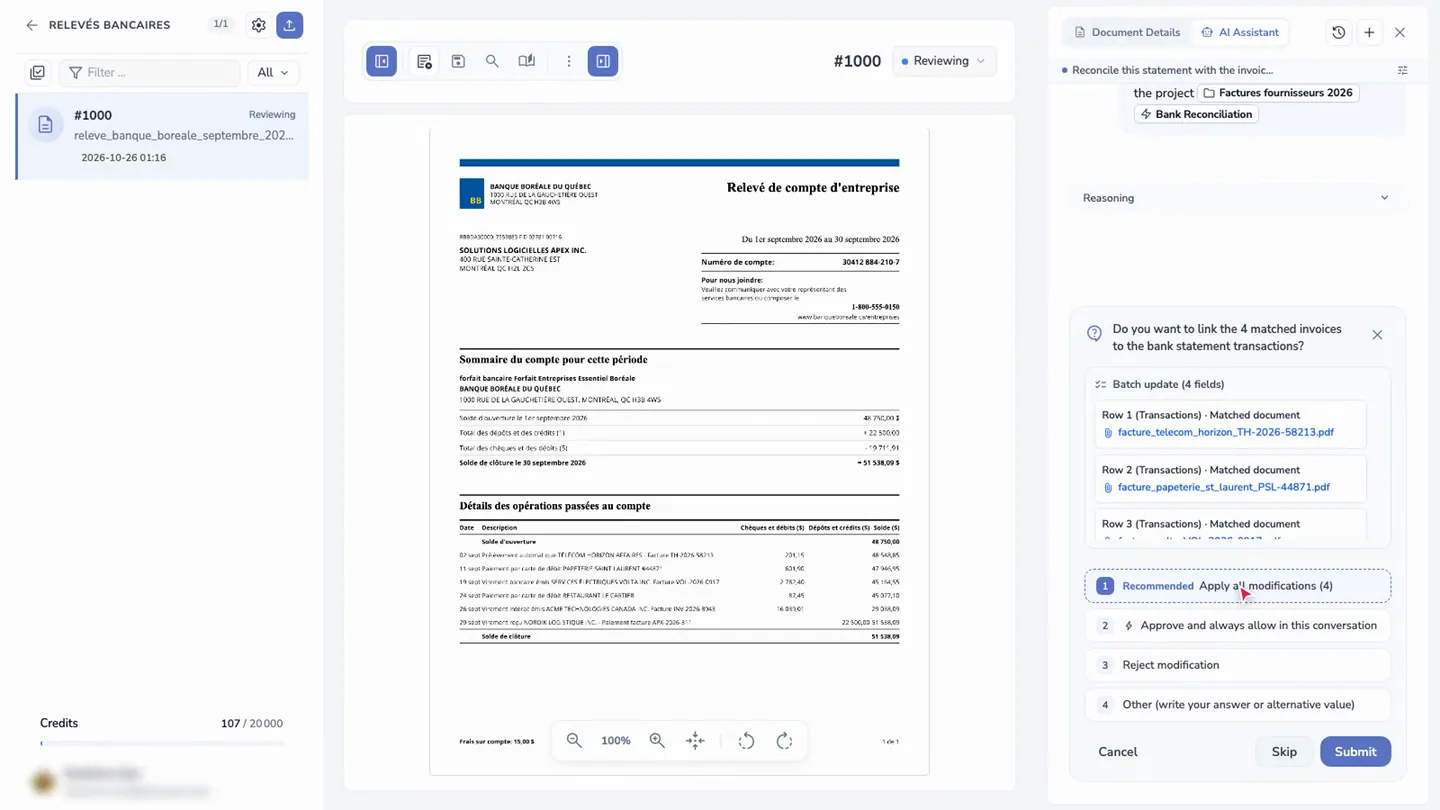
The company's vendor invoices are in another project. In the statement's AI Assistant, you type: "Reconcile this statement with the invoices in @Factures fournisseurs 2026", and add the @Bank Reconciliation skill.
The agent compares each transaction with the invoices: same amount, same supplier, and a payment date consistent with the invoice date. It proposes linking four invoices to lines 1, 2, 3 and 5 of the statement, and waits for your answer: Apply all modifications (4), Approve and always allow in this conversation, Reject modification, or Other.
The result
Once the proposal is approved, each invoice is attached to its line in the statement's Matched Document column, and the statement is attached to each invoice. The invoices move to the Reconciled status, with their payment date and payment method.
The agent ends with the discrepancies to handle:
- A debit with no supporting document: $87.45 at Restaurant Le Cartier, on September 24. The receipt or expense report is missing; it must be requested from the cardholder.
- A customer receipt: $22,500.00 from Nordik Logistique inc., on September 29. It belongs to customer billing, not to vendor invoices.
- A vendor invoice not yet debited: Quincaillerie Rénov-Pro inc., $1,425.60, issued September 12. It remains to be paid, or will show up on the October statement.
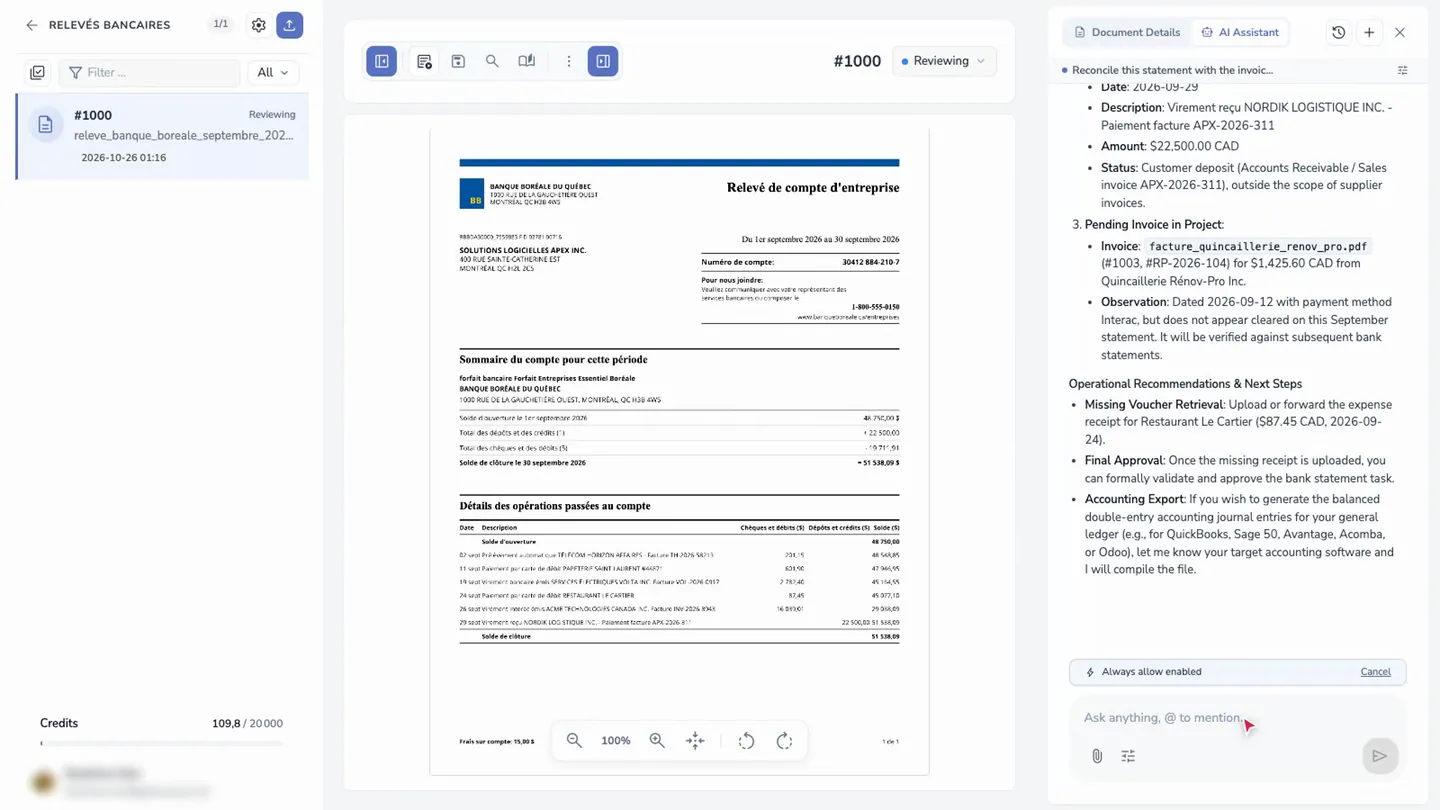
Clicking an invoice in the Matched Document column opens it in a preview, next to the statement. The agent can then prepare the journal entries file for your accounting software. See Agentic Document Processing.
Frequently asked questions
Does Scanee read a scanned or multi-page statement?
Yes. Native and scanned PDFs are read, including multi-page ones. Always check that the balance adds up before exporting.
How do I get a CSV with a semicolon separator?
In the export settings, choose Semicolon (;) as the CSV Separator, and the date format you need. You can also export directly to Excel (.xlsx).
My accounting software expects a specific import format. Can I adapt it?
Yes. Change the export columns in the Exports tab, or create the project by attaching a sample of the expected file as an Export template. See Extracting any field from any document.
Does the AI Assistant change my invoices without asking?
No. It shows the links and updates it proposes, and nothing is saved before your choice in the confirmation card. You can approve change by change, or for the rest of the conversation.
Where are the statements I upload hosted?
Hosting, subprocessors and document retention are described in the Security and privacy white paper.
What about transactions with no invoice?
The agent lists them at the end of the reconciliation. For a debit with no supporting document, request the receipt; for a customer receipt, reconcile it with your sales invoices. The trial lasts 14 days, with no credit card: try Scanee.